
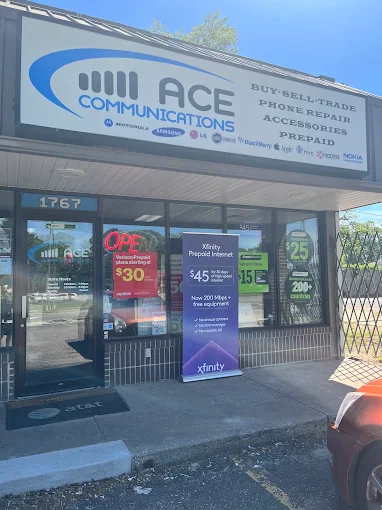
1767 E Apple Ave, STE 1, Muskegon, MI 49442
Open today 10AM – 7PM
Call or text (231) 777-2355
Sale
Fri, Nov 27 · 10AM – 7PM · One day only

Muskegon's Cell Phone Store for Repairs, Devices & Wireless Service

Looking for a trusted cell phone store in Muskegon, MI? Ace Communications offers professional iPhone and Samsung repairs, prepaid wireless activations, device protection plans, and affordable technology solutions. From same-day phone repairs to helping you find the right wireless plan, our experienced local team is here to keep you connected.

Need a repair today? 
Price your repair →

Price your repair

Search any phone, tablet, computer or console

From$300
Time30–60 min
We Repair

Professional Phone & Electronics Repair in Muskegon, MI

Ace Communications provides professional electronics repair in Muskegon, Michigan. Our technicians work on smartphones, tablets, laptops, desktop computers, and gaming consoles. Whether you need an iPhone screen replacement, Samsung battery repair, computer troubleshooting, or a PlayStation HDMI repair, we offer reliable repair solutions for a wide range of devices.
Affordable Cell Phone Repair Prices in Muskegon, MI
Looking for affordable iPhone or Samsung repair in Muskegon? Ace Communications offers competitive pricing on screen replacements, battery replacements, charging port repairs, and more. Found a lower advertised price for the same repair? Bring it to us, and we'll work to beat it. We believe quality phone repair shouldn't mean paying more than necessary.
Smartphone repair technician at Ace Communications

Same-Day Phone Repair in Muskegon

Need your phone fixed today? Ace Communications offers fast, same-day phone repairs in Muskegon. Many common screen, battery, and charging-port repairs can be completed in as little as 15 minutes, depending on the device, parts availability, and repair complexity. Walk into our store and let our technicians help get your device working again.

15m–2h

screens & batteries

Lifetime

screen warranty

4.7

1800+ reviews

Advanced Microsoldering & Board-Level Phone Repair in Muskegon

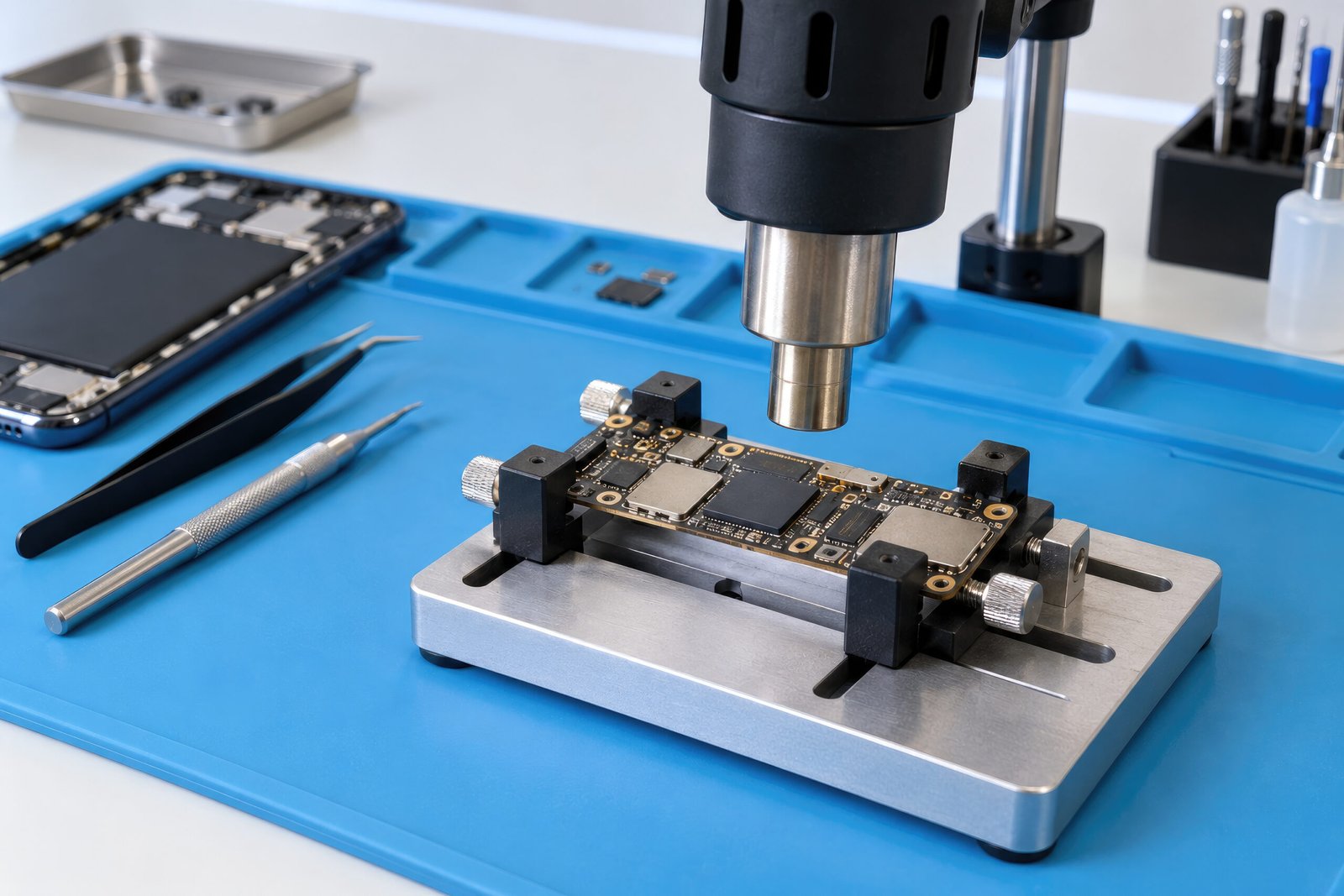
Does your phone refuse to turn on, stop charging, or suffer from liquid damage? Ace Communications offers advanced board-level diagnostics and micro-soldering in Muskegon, MI. Our technicians work directly on circuit boards to diagnose short circuits, charging IC failures, power issues, and other complex electronic problems. When possible, we also help recover important photos and data from damaged devices.
no power
Short circuits, PMIC faults
CHARGING
Tristar / charge IC repair
LIQUID
Corrosion cleanup & rework
DATA
Photos off dead phones

How Much Does Phone & Electronics Repair Cost in Muskegon?

Repair costs depend on your device model and the type of damage. Here are starting prices for some of our most common repairs at Ace Communications in Muskegon. Select your device to see model-specific pricing and available repair options.
Repair
From
Time
Warranty
iPhone Screen
$65
5 - 20 minutes
Lifetime
Samsung screen
$85
15- 30 minutes
Lifetime
Battery replacement
$40
5 - 20 minutes
90 Days
Charging port
$85
30 - 60 minutes
90 days
Board-level / no power
$125
2 -14 Business Days
30 Days
PS5 HDMI port
$150
Same Day
Lifetime

We'll Beat Competitor Prices on Comparable Products & Services

Why pay more for your phone, repair, or wireless service? At Ace Communications, we believe Muskegon customers deserve competitive prices and great service. Bring us a current competitor's advertised price on a comparable product or service, and we'll work to beat it. Shop local, save money, and get help from people who know technology.
Prices updated November 2026.
Schedule online and take $20 off any repair.
Schedule now →
Protection for less

Protect Your Phone with Protech+ Device Protection

Protect your device with Protech+, the in-house device protection plan offered by Ace Communications in Muskegon, MI. Get access to local support and in-house repairs when an eligible device needs service. Unlike traditional mail-in repair processes, Protech+ claims are handled directly at our Muskegon location. Plans start at $10 per month, with eligibility and coverage determined by your plan agreement.
  • No websites or phone trees — just the counter
  • Repaired in-house by our own techs
  • Plans from $10/ month · device must be working when enrolled
  • Local claim assistance.
Protech Plus phone protection plan at Ace Communications

Prepaid Phone Plans & Wireless Activation in Muskegon, MI

Looking for affordable prepaid phone service in Muskegon? Ace Communications helps customers compare wireless plans, activate new service, and transfer existing phone numbers. We offer in-store prepaid activations through participating providers, including Verizon Prepaid, AT&T Prepaid, Simple Mobile, and Tracfone. Stop by and let our team help you find a plan that fits your needs and budget.

Verizon Prepaid

Starting at $50 / Month

AT&T Prepaid

Starting at $30/ Month

Simple Mobile

Starting at $25/ Month

%

Happy Customers

+

Devices we have fixed

+

years experience

Why Muskegon Customers Choose Ace Communications

Our customers are at the heart of everything we do. From quick charging-port cleanings to complex device repairs, we take pride in providing honest recommendations, friendly service, and dependable solutions. See what local customers have to say about their experiences at Ace Communications.
Customer Rating
I went to ace due to my phone not wanting to charge right. They cleaned it all out for free and took less than 10 minutes and now its charging just fine. I was very pleased with both the employees. They were very kind and helpful. I will go back to Ace when I need something.
Ashley B
Google Review
Cameron was very helpful in figuring out why my phone wasn’t charging, cleaned the charging port and didn’t even bother to charge me. Highly recommend!
Kayla W
Google Review

Your Local Phone Repair & Technology Experts in Muskegon

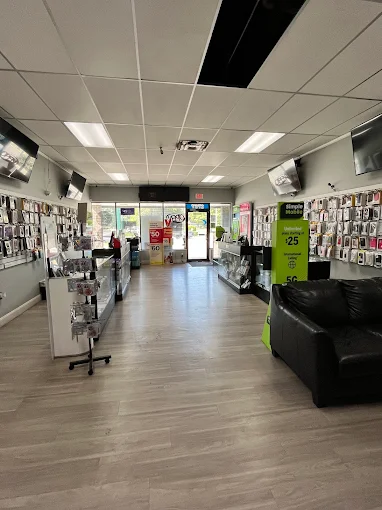
Ace Communications is a locally operated phone repair and technology shop located on East Apple Avenue in Muskegon, Michigan. With more than 20 years of industry experience, our team provides in-house phone repairs, advanced board-level diagnostics, prepaid wireless activations, and device protection services. When you visit Ace, you can speak directly with the people who work on your devices.
  • Locally operated Muskegon business.
  • More than 20 years of experience.
  • Over 300 repairs a month
  • Phone, tablet, computer, and console repairs.
  • Advanced microsoldering capabilities.
  • Local prepaid wireless assistance.
Ace Communications phone repair shop in Muskegon Michigan

Frequently Asked Questions About Ace Communications

Yes. Most screen, battery and charging-port repairs take 15 minutes to 2 hours. Board-level and liquid-damage repairs usually take 2 -14 business days.

No. Walk-ins are welcome Monday–Friday 10AM–7PM and Saturday 10AM–5PM at 1767 E Apple Ave, Muskegon. Calling ahead makes sure your part is in stock.

Screen repairs have a lifetime warranty. All other repairs carry 90 days. Drops, or cracks and liquid damage aren't covered.

Often, yes. We do board-level diagnostics and micro-soldering in-house, so we can repair power and charging faults that most shops call unfixable, and recover your photos.

No. We're an independent shop. You choose Genuine Apple or Premium parts, and every repair carries our warranty.

ProTech Plus is Ace Communications' in-house protection plan. Claims are handled at our Muskegon counter and repaired in-house, with a $49 deductible for screens and batteries and $99 for any other covered repair. Devices must be working when enrolled.

Yes. Schedule your repair online and get $20 off. Walk-ins are still welcome at regular price.

Yes. Bring in phones, tablets or consoles, working or not, for a cash or trade-in quote.

Yes! Ace Communications in Muskegon, Michigan, works to beat competitors' advertised prices on comparable products and services. Bring us a current competitor quote and let us show you how much you can save.

Visit Ace Communications in Muskegon, Michigan

Visit Ace Communications at 1767 E Apple Ave, Suite 1, Muskegon, MI 49442 for professional phone repairs, electronics repair, prepaid wireless service, and device protection. We proudly serve customers throughout Muskegon and surrounding communities, including Norton Shores, Muskegon Heights, North Muskegon, Fruitport, Grand Haven, and Holland.
Monday - Friday
10 AM - 7 PM
Saturday
10 AM - 5 PM
Sunday
CLOSED
Serving Muskegon, Norton Shores, Muskegon Heights, North Muskegon, Fruitport, Grand Haven and Holland.
© 2025 Acecomm Inc. All rights reserved. Designed by DesignFlip LLC

Don’t Lose Your Number — Here’s How to Move It

Step-by-Step Guide to Porting Your Number

Porting requirements

To get started with porting your number, make sure you have the following information from your current carrier:

  1. Your account MUST be currently active. You CANNOT port a number that is inactive.
  2. Your account number! (See porting guide for your carrier)
  3. You need your Number Transfer Pin. This is a pin that your carrier sets as an extra security measure. (See porting guide for your carrier)
  4. Name & Address associated with your current account
  5. If you have a Number Lock active (a security feature that blocks unauthorized moves), you must disable it.
Your Number Transfer Pin is Valid for 
7 Days

Account Number: Found on your Verizon billing statement or inside your My Verizon account under Account Overview. If you have a legacy or business account, it may include letters—check your bill or contact Verizon if unsure.

To get a Number Transfer PIN you must be signed in to My Verizon as Account Owner or Account Manager. For business accounts please scroll down to the for business account section.or Click here

Use any of these methods to get a Number Transfer PIN:

  1. Dial #PORT from the smartphone that has the number you want to transfer.*
    • Our system verifies you're dialing from the phone to be transferred.
    • We send you a link to generate the Number Transfer PIN in My Verizon.
  2. My Verizon: Visit Create Your Number Transfer PIN. Choose Generate PIN.
    • Note: In some cases, generating a Number Transfer PIN may be unavailable through My Verizon. For help with your account, contact Customer Service (800-922-0204) or visit a Verizon store.

Important:

  • Keep your Number Transfer PIN and Account Number safe and don't share it with anyone except the new carrier or an Account Member. Verizon will never ask you for this information.
  • The Number Transfer PIN is an account level code you can use to authorize the move of any/all of the lines on your account. Tell your new carrier which Verizon lines you want to move.
  • The Number Transfer PIN is only valid for 7 days so give it to your new carrier promptly.

*If you don't have the phone which has the number you want to transfer, you can use another smartphone, tablet or computer. Follow the My Verizon website steps above.
** If you or a loved one need to move mobile lines due to intimate partner violence or abuse, call Customer Service at 800-922-0204. Learn more about Managing your Verizon mobile line in a domestic violence situation.

Get number Transfer pin for business accounts

Single Line Port-Outs

  1. Generate a Number Transfer PIN for each line to be ported out in My Business. 

  2. Tell your new carrier which lines you want to move. Number Transfer PINs are unique to each line you port out.  

  3. Use the Number Transfer PIN and your Verizon account number to authorize the new carrier to start the transfer. The new carrier will contact Verizon, transfer your number and disconnect your line(s).

Multi-Line Bulk Port-Outs

For bulk port out requests including 10 or more lines please call 1-800-922-0204 for support.

Before you can move a number to another device or carrier, be sure Number Lock is turned off. Turn off Number Lock by dialing *611. 

Or in My Verizon go to Number Lock on your Security page: 

  1. Select Off for the number(s) that you want to unlock.
  2. Respond to the security authorization code we send you. This confirms it's okay to unlock your number.
  3. Tap or click Save Changes. Now you can move the number(s) you unlocked.
Your Number Transfer Pin is Valid for 
4 Days
  1. Sign in to your myAT&T account
    Use your User ID and password to log in via AT&T’s website or the myAT&T app.

  2. Navigate to your profile or billing section
    Once signed in, go to My AT&T Profile or a similar section like “My linked accounts."

  3. Locate the account number
    You'll see the Account Number listed under My linked accounts, which covers all services under your login.

Online AT&T account

Only users with primary online access can request a number transfer PIN.

  1. Go to People & permissions in your AT&T profile.
  2. Scroll to Wireless and look for Transfer phone number.
  3. Select Request a new PIN. Your Number Transfer PIN will display on the screen.

With the myAT&T app

Only users with primary online access can request a number transfer PIN.

  1. Sign into the myAT&T app.
  2. Choose More and then Manage profile.
  3. Select People & permissions. If you don’t see People & permissions, you may have to sign in to your accounton the web.
  4. Scroll to Transfer phone number and select Request a new PIN. Your Number Transfer PIN will display on the screen.

From your AT&T mobile device

Call *PORT. Follow the prompts to get your Number Transfer PIN sent to you via text. You’ll need your account passcode to generate the Number Transfer PIN when calling *PORT.

AT&T Business Wireless

Only the primary user on a business account can request a Number Transfer PIN. If you’re the primary user on the account, follow the steps for Online AT&T account or contact us to request a Number Transfer PIN. A rep will generate a PIN and email it to you.

Heads up: If you have a Business Wireless account, you can’t use the AT&T mobile device or myAT&T app methods to create a Number Transfer PIN.

You can only turn Wireless Account Lock on or off using the myAT&T app. The app needs to be installed on a device that is active on your Wireless account. Download the myAT&T app now

  1. Open the myAT&T app. Sign in, if asked.
  2. Select Services (second tab at the bottom).
  3. Choose Mobile Security, then scroll to and select Wireless Account Lock.
  4. Scroll to and select Continue.
  5. Choose the account that you want to lock or unlock.
  6. Swipe to lock or unlock the account.

Good to know: Any time a user turns Wireless Account Lock on or off, we’ll send an email to the primary account holder and a text message to each active wireless number on the account.

Your Number Transfer Pin is Valid for 
7 Days

On the My T-Mobile Website or App:

  1. Log in to your T‑Mobile account via T‑Mobile.com or the T‑Life app.

  2. On the dashboard or welcome screen, look near the top—next to your name, plan summary, or under your billing overview—for your Account Number. It’s often labeled clearly or shown in your profile header.

    • “View your account number on the welcome screen.” 

    • Users also report seeing it next to their name and phone number in the app’s Manage or More sections. 

From a Bill (Digital or Paper):

If you're unable to log in, you can still find your account number:

  • Download your digital bill (PDF) from My T‑Mobile or your online account.

  • Your account number is usually on the first page, near the top or in the invoice summary area. 

Via T-Mobile App (T-Life):

  1. Log into the app as the Primary Account Holder.

  2. Go to Manage at the bottom.

  3. Select your line, scroll to Line Settings.

  4. Tap Request a Transfer PIN. Your PIN will display on screen.

Via the T-Mobile Website:

  1. Sign in at my.t-mobile.com using your Primary Account Holder credentials.

  2. Hover over your account, go to Profile → Line Settings.

  3. Choose the correct line and click Request a transfer PIN at the bottom.

If Needed, Request via Phone or In-Store:

  • You can also call 611 from your T-Mobile device or dial 1-800-T‑MOBILE for help generating the PIN.

  • If that fails, the Primary Account Holder can visit a retail store with ID to have a representative generate the PIN.

Your Number Transfer Pin is Valid for 
3 Days
  • Where to Find Your Boost Mobile Account Number

    • Not available online or in the app
      Boost does not display your account number in the Boost Mobile app or on the website.

    • You must call Boost Mobile Customer Care
      To retrieve your account number, call 1‑888‑266‑7848 (or 866‑402‑7366 via some menu paths). Follow the prompts and speak to an agent. They will ask for your 4-digit security PIN (the one used for account access), and then provide your 9-digit account number

How to Get a Boost Mobile Port-Out PIN

  • You must call Boost Mobile Customer Care at (833) 502‑6678 to request the PIN for each number you wish to port. 

  • The PIN cannot be generated or retrieved via the online portal or mobile app. This catches many off guard. Supporting insights from user reports highlight the same:

Your Number Transfer Pin is Valid for 
5 Days

How to Find Your Cricket Wireless Account Number

  • Online / myCricket App
    Log in to your Cricket account via the website or myCricket app. In your account info or billing section, your account number is typically displayed. You may also find it in areas like My Profile or Account Settings.

  • On Your Bill
    If you have a paper or PDF bill, look in the top right corner—your Cricket account number is usually printed there.

How to Get Your Number Transfer PIN from Cricket

You have several flexible options to request your PIN:

  • Through the myCricket App

    1. Open the app and tap the gear icon (Account section).

    2. Select the correct line under Line Settings.

    3. Tap “Get my Number Transfer PIN”.On the Cricket Website
      Log into your online account, navigate to My Profile → Number Transfer PIN, and click Generate PIN.

  • Dial from Your Cricket Phone
    Dial *PORT (or *PORTAR for Spanish-modeled devices), and Cricket will generate a PIN for you directly.

  • Call Customer Service
    Call 1‑800‑CRICKET (274‑2538). Be ready to provide your account PIN when asked, and they’ll issue the Number Transfer PIN.

Your Number Transfer Pin is Valid for 
3 Days

Metro Account Number

You can typically access your Metro account number through:

  • Online dashboard or the Metro app (My Account section)
    Metro by T‑Mobile accounts generally display the account number when you log in to the My Account portal or app. It's sometimes near your profile or billing summary

  • From your billing statement
    If you have access to a paper or digital bill, the account number may appear there—often near the top of the statement.

  • In-store assistance
    Some users report store staff being able to look it up if needed—but this may vary by location or representative training.

Metro Number Transfer PIN (Port-Out PIN)

Here’s what the community and support sources have revealed:

  • Via your online profile
    The Metro account dashboard may have an option to request or generate a Transfer PIN (Port‑Out PIN) for porting out.

  • Calling or visiting a store
    If the PIN option isn’t available online:

    • Visit a corporate Metro by T‑Mobile store, bring your ID and account PIN — staff may contact dealer support to generate the Transfer PIN.

    • Some Reddit users report success only when the store staff can call the porting department or dealer support to retrieve the PIN.

Your Number Transfer Pin is Valid for 
3 Days

Account Number

  • You can find your Mint Mobile account number on the top right corner of your bill (whether paper or PDF), or within your online account portal.

  • If it’s not visible there, the best way is to contact Mint support via chat or by calling them at (800) 683‑7392 to request it.

Number Transfer PIN (Port-Out PIN)

  • Mint doesn’t supply the transfer PIN automatically—you must reach out directly:

    • Use the chat feature on their website/app (the "Fox Bot") and ask for the PIN; or

    • Call customer service at (800) 683‑7392 and request it verbally.

AppleCare
AT&T
Verizon
T-Mobile
GeekSquad
Square Trade
Asurion

How to cancel by phone

Follow the instructions below to cancel your coverage with your Cellular Provider or other Device Protection Plan Provider.

Important Things

There are a few important things to keep in mind when you cancel and return an AppleCare coverage plan:
  • If you cancel your AppleCare plan within 30 days of purchase, you’ll get a full refund, minus the value of any service already provided.

  • If you cancel your AppleCare plan more than 30 days after your purchase, you’ll get a refund based on the percentage of unexpired AppleCare coverage, minus the value of any service already provided. You can find the cancellation fee in the AppleCare product Terms and Conditions for your AppleCare Protection Plan or AppleCare+.

Refund guidelines may vary in your region. Learn more about the Terms and Conditions specific to your product and country or region.
 
Here’s what you’ll need:

AppleCare Number

The AppleCare agreement number from your Proof of Coverage certificate.

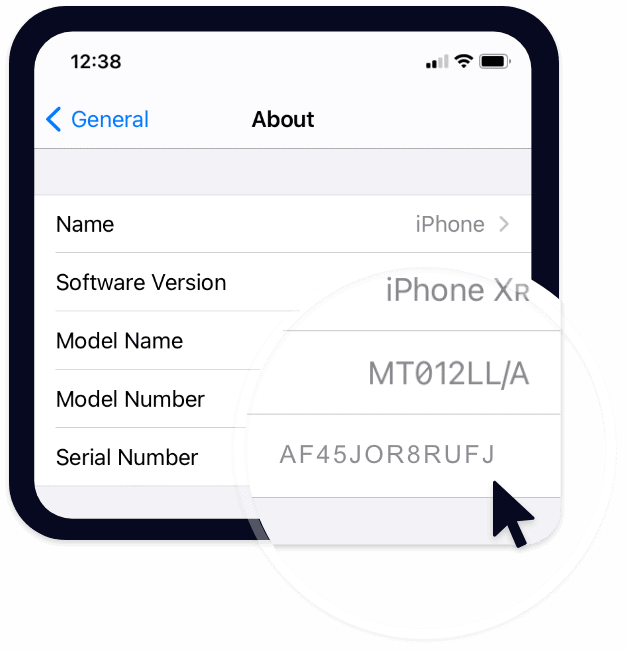
Serial Number

The serial number of the Apple device your AppleCare plan covers.

Call Apple

Call Apple. Tell the Advisor that you need help with an AppleCare plan refund.

How to cancel AT&T Insurance

Follow the instructions below to cancel your coverage with your Cellular Provider or other Device Protection Plan Provider.
Here’s what you’ll need:

Open the AT&T website

Click here to go to the AT&T website.

Log in

Log in to your account and go the My Wireless page (see the image below).
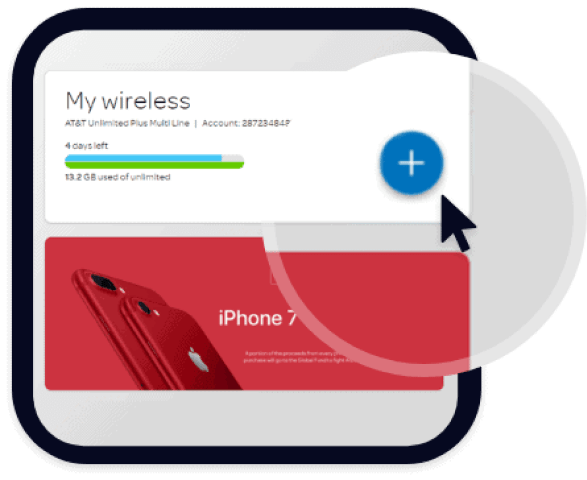
Manage Device & Features

Select the device with the protection Plan under My Devices & Features.

Select the device

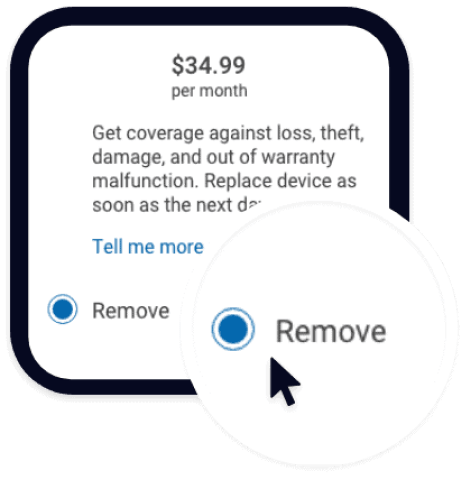
Click on Manage Device & Features and expand AT&T Mobile Protection Pack, AT&T Mobile Insurance or AT&T Protect Advantage (depending on which product you have) by clicking the See Features button.

Click Remove

Click Remove at the bottom of the AT&T Mobile Protection Pack (image below).
Here’s what you’ll need:

Call AT&T

From your AT&T phone, call AT&T customer support at 1-800-331-0500 (available 24/7).

Say This

When prompted say “cancel my mobile insurance plan.

Let the system work

The system will guide you through the cancellation process.

Confirmation

Confirm your cancellation, and you’re all set.

How to cancel Verizon Insurance

Follow the instructions below to cancel your coverage with your Cellular Provider or other Device Protection Plan Provider.
Here’s what you’ll need:

Open the Verizon website

Click here to go to the Verizon website.

Log in

Log in to your account.

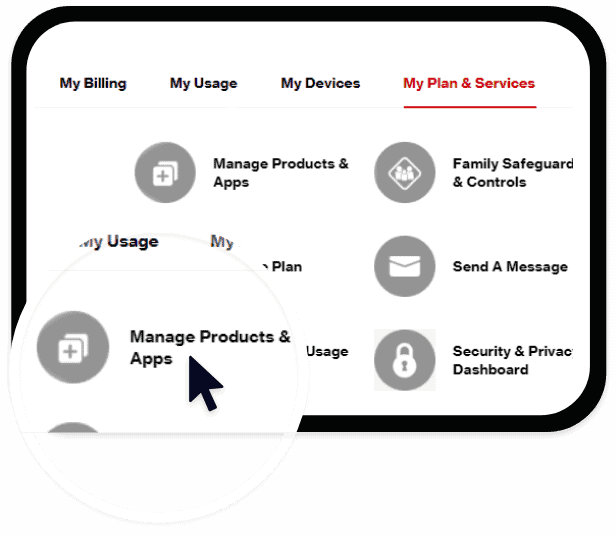
Manage Products

Go to My Plan & Services, then Manage Products & Apps, then click Manage Your Products (see image below).
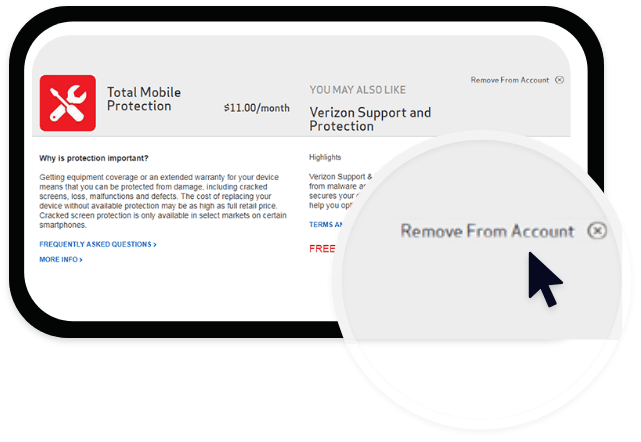
Remove Protection

Scroll to “Total Mobile Protection” and click the Remove from Account button in the upper right corner (see the image below).
Cancel Protection

Click “Decline Equipment protection” to confirm your cancellation.

Here’s what you’ll need:

Call Support

From your Verizon phone, call Verizon customer support at 1-800-922-0204 or by dialing *611 (6 am to 11 pm, Mon-Sun)

Voice Prompt

When prompted, say “Cancel mobile protection plan.”

Enter PIN

Enter your account PIN for your protection plan.

Speak to Agent

When connected with an agent, ask to cancel your mobile protection plan.

How to cancel Geek Squad Insurance

Follow the instructions below to cancel your coverage with your Cellular Provider or other Device Protection Plan Provider.
Here’s what you’ll need:

Visit T-Mobile

Click here to go to the T-Mobile website.

Account Login

Log in to your account.

Plan Link

At the top of the page, click the “Plan” link.

Change Services

On the Plans and Services page, click “Change Services.”

Protection Options

Scroll down to Premium Handset Protection.

Uncheck JUMP™

Uncheck the box for JUMP™ 

Click Next

Scroll to the bottom of the page and click “Next.”

Submit Changes

You’ll be asked to review the changes you’ve made. Check the box to agree to the terms and conditions, then click “Submit Changes” to confirm your cancellation.

Here’s what you’ll need:

Call T-Mobile

From your T-Mobile phone, call T-Mobile customer support at 1-800-937-8997 or by dialing 611 (6am to 10pm, 7 days a week).

Enter your mobile number.

Enter your mobile number.

Request Representative

Say “Representative” to speak with an agent.

Request Cancellation

Tell the customer service agent that you want to cancel your insurance.

How to cancel by phone

Follow the instructions below to cancel your coverage with your Cellular Provider or other Device Protection Plan Provider.
Here’s what you’ll need:

Call Geek Squad

Call Geek Squad customer support at 1-800-GEEKSQUAD (433 - 5778) (available 24/7).

Say 'Cell Phone

When prompted, say “cell phone.”

Say 'Cancellation

When prompted, say “cancellation.”

Speak to Agent

When connected with an agent, ask to cancel your protection plan.

How to cancel online

Follow the instructions below to cancel your coverage with your Cellular Provider or other Device Protection Plan Provider.
Here’s what you’ll need:

Login & Manage

Login to your SquareTrade account, go to the “My Warranties” tab, and select “Manage.” A number of tabbed options will appear below.

View & Cancel Plans

From here, you can use the menus to check the status of a particular Care Plan or see them all at once. You can also click on one of the tabbed options in order to cancel it.
How to cancel online

Follow the instructions below to cancel your coverage with your Cellular Provider or other Device Protection Plan Provider.
Switching from Asurion insurance to a My Protection plan doesn’t have to be complicated. In order to cancel Asurion phone insurance, take a moment to find out when your current insurance will run out. You can find this information by calling Asurion customer service or logging into your online account with your cell service provider.

Once you’re ready to cancel, call the Asurion customer service line for your specific service provider. You can find this information directly on the Asurion website on the Contact Us page.

The representative you speak with should be able to cancel your warranty during your call once they receive the personal information about your account that they need.

After confirming your cancellation with an Asurion customer service representative, make sure to check your next bill to confirm that coverage has been cancelled. If you prefer to write in a cancellation notice instead, you can find the address to send it to on the terms and conditions of your warranty or your original receipt.